

What are Post-Call Webhooks?
Post-call webhooks are HTTP notifications that Bland AI automatically sends to your server after a phone call completes. Think of them as real-time alerts that deliver call data directly to your application, enabling you to:- Process call outcomes immediately - Trigger follow-up actions based on call results
- Integrate with your CRM or database - Automatically update customer records with call transcripts and extracted data
- Build custom analytics - Track call performance and agent effectiveness
- Create automated workflows - Send emails, create tickets, or update dashboards based on call data
- Access rich call data - Get complete transcripts, extracted variables, call duration, and more
About This Tutorial
This tutorial will help you set up and test your Bland AI webhooks for both inbound and outbound phone calls.Step 1: Create your test webhook
For testing purposes, we’ll use Webhook.site to create a temporary webhook endpoint. Webhook.site generates instant webhook URLs with no setup required and captures all incoming requests so you can see webhook deliveries in real-time. When you visit Webhook.site, it automatically provides you a unique webhook URL that will capture any HTTP requests sent to it. This is perfect for testing before you implement your own webhook endpoint.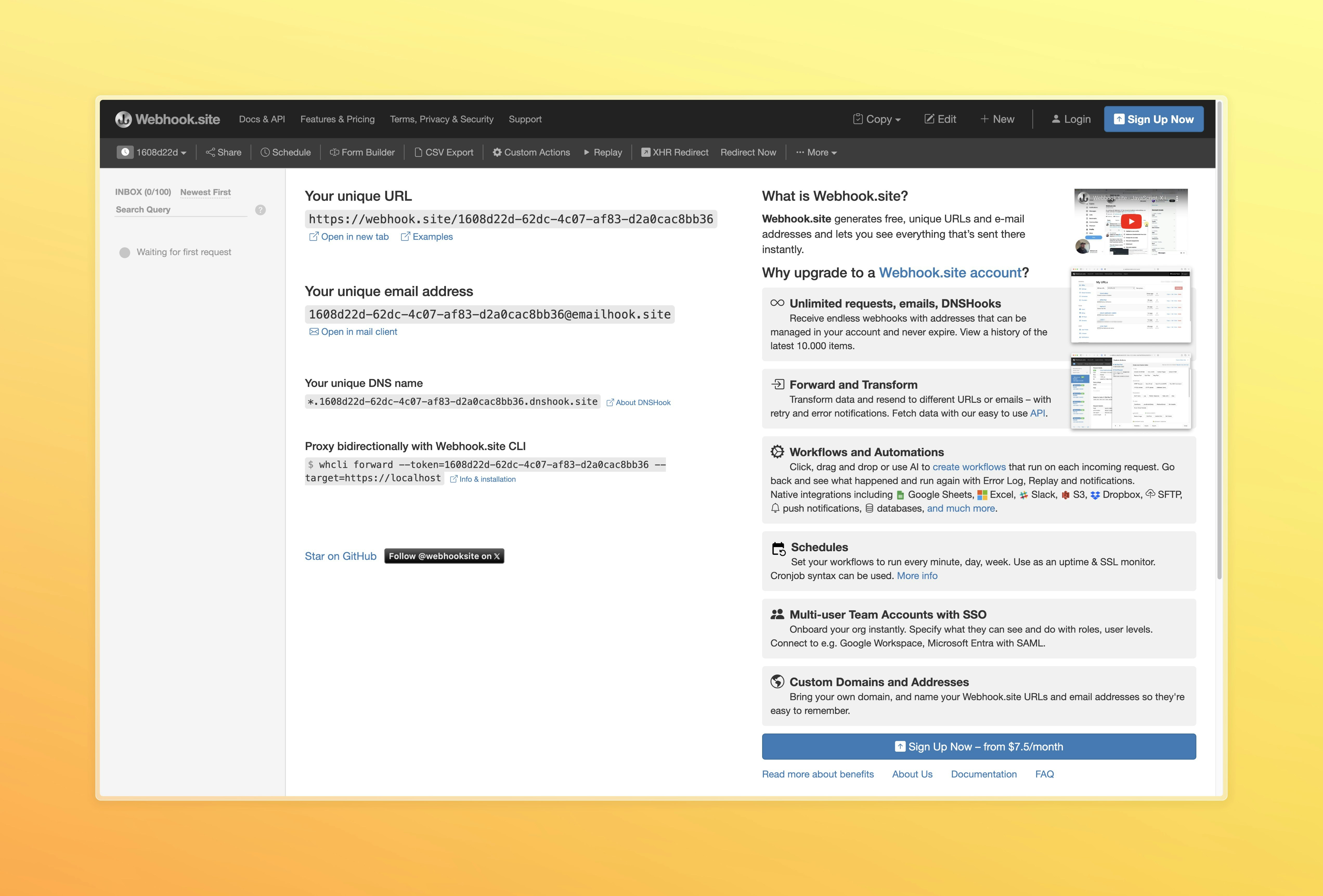
Step 2: Configure webhook for inbound calls
Inbound calls report to the webhook set on the phone number they arrive on.Open your phone number
- Open the Bland dashboard and set the selector at the top of the sidebar to All agents
- Under Dispatch, open Phone numbers
- Press Configure on your number’s row
Add your webhook
- Open Call configuration: it holds the webhook and events settings for the number
- Paste your webhook URL: use the Webhook.site URL from Step 1
- Save: under Review and save, tick the confirmation and press Save
webhook_events parameter in Send Call with an Agent.
Step 3: Test with a live phone call
Now test with an actual phone call:- Call your inbound phone number and have a conversation with your agent
- End the call completely
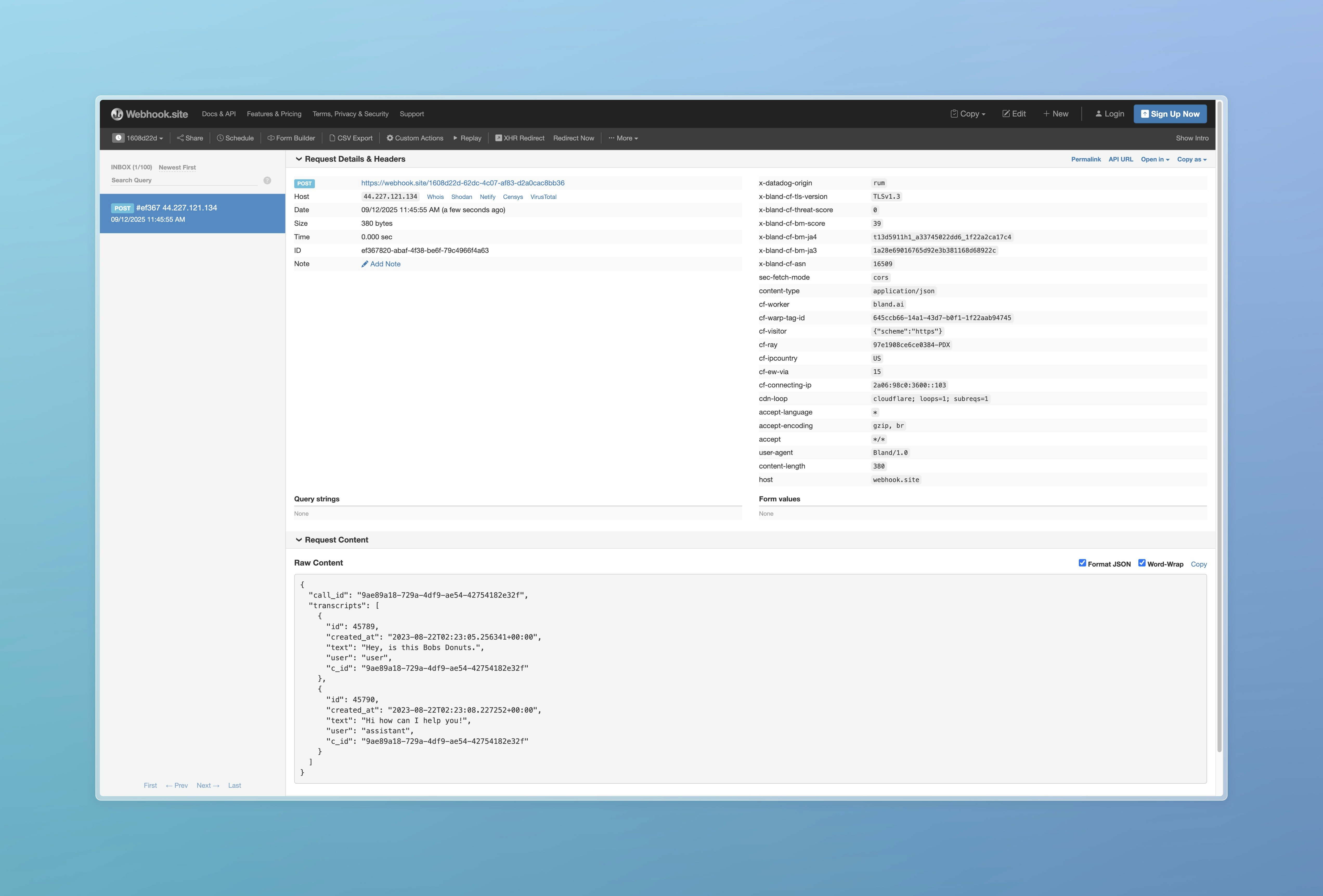
- Return to Webhook.site. A new request appears in the list with the complete call data
- Inspect the payload to see the full transcript, call duration, and other call metadata
- Double-check that you saved the correct URL
- Make sure there are no extra spaces or characters
- Confirm the number is attached to your agent and the agent is published to production
Step 4: Configure webhooks for outbound calls
For outbound calls, include thewebhook parameter when you send the call with your agent:
https://. See Send Call with an Agent for complete request details.
Testing your outbound webhook
- Send a test call using the API with your webhook URL
- Wait for the call to complete
- Check Webhook.site for the incoming webhook payload
- Verify the payload contains your outbound call data
Webhook Payload Examples
Understanding the structure of webhook payloads helps you build better integrations. Here are examples of the actual data your webhook endpoint will receive:Standard Post-Call Webhook
This is the immediate webhook sent right after a call completes. This example comes from a call that ran a pathway, so it includes pathway fields such aspathway_id, pathway_logs, and pathway_tags. For field definitions, see Call details.
View Standard Post-Call Webhook Payload
View Standard Post-Call Webhook Payload
Disposition results
If your agent runs dispositions, their results arrive on this webhook underagent_dispositions. The disposition’s Webhook behavior setting decides how they arrive:
- Follow-up event: the call webhook fires as usual. A second event with
event_typeset todispositionsfollows once the disposition finishes - Hold original webhook: Bland waits for the disposition, then sends one combined webhook with
agent_dispositionson the call payload. This adds up to 30 minutes of latency
Legacy: delayed webhook with citations
Citations are a legacy feature. Dispositions replace citations and outcomes. On an agent still running V1 citations, the call webhook waits for citations, and a disposition set to Hold original webhook falls back to Follow-up event.
citationsin the call’swebhook_events- The “Delay post call webhook” toggle in your citation settings
View Delayed Webhook with Citations Payload
View Delayed Webhook with Citations Payload
Understanding Warm Transfer States: The example above shows a warm transfer with
"state": "MERGED" and "call_ended_by": "USER". For complete state definitions, see the Warm Transfer documentation.- Is sent after post-call processing, 30 to 60 seconds later
- Includes
corrected_transcript, with speaker labels and confidence scores - Contains a
citationsarray with extracted variables linked to specific utterances
Post-Transfer Transcript
The post-transfer transcript is in limited rollout. If it is not enabled for your organization, these properties are absent.
"post_transfer_transcript" in the call’s webhook_events. No citation schema is needed. Subscribing requires call recording: record is enabled automatically when unset, and passing record: false alongside the subscription returns a 400. Both cold and warm transfers are covered.
Subscribed calls that were transferred to a human carry two additional properties on the post-processing webhook (in both the standalone and delayed delivery modes):
transfer_offset_seconds: seconds from the start of the call to the transfer.post_transfer_transcript: the conversation after the transfer, as speaker-attributed segments. The transferred-to human isspeaker: 2/"representative"; the caller isspeaker: 1/"user". Timestamps are seconds from the start of the transferred conversation. Thecorrected_transcriptcontinues to contain only the pre-transfer portion of the call.
event_type names it (for example "post_transfer_transcript" or "citations"). When it carries more than one, event_type is "multiple" and a contents array lists what is present, in a fixed order:
contents can list citations, corrected_transcript, dispositions, post_transfer_transcript, and live_translation_transcript. Calls without the post_transfer_transcript subscription are unaffected: their payloads are unchanged.
The same segment format is available live during the transferred conversation via the Post-Transfer Transcript Stream WebSocket. The live stream is enabled separately with stream_post_transfer_transcript: true; it does not require the webhook subscription, and the webhook subscription does not require the stream.
SMS Conversation Webhooks
SMS conversations fire webhooks with the same structure as voice calls, so you can use a single webhook endpoint for both channels.Message Webhooks
Every time a message is sent or received, a webhook fires with the message details and full chat history. The payload includes:conversation_id,phone_number,agent_number,channel("sms","rcs", or"whatsapp")pathway_id,pathway_versionmessage,sender("USER","AGENT", or"HUMAN"for a rep replying during a human handoff)chat_history: the full conversation so farvariables: pathway variables collected during the conversationmetadata: custom metadata passed when the conversation was createdpathway_tags: tags from pathway nodes visited during the conversation
Status Webhooks
When a conversation ends (via timeout, end-call node, or opt-out), a status webhook fires with the complete conversation context. In addition to the fields above, the status payload includes:status:"ended","timeout","blacklisted","inactive","human_handoff","human_handoff_ended","read", or"link_clicked"message_count: total messages in the conversationconcatenated_transcript: the full conversation as a single stringsummary: AI-generated summary (when a summary prompt is configured)citations: extracted citation variables, when legacy citation schemas are configureddispositions: outcome run results, when legacy outcomes are configured
read and link_clicked status events for RCS and WhatsApp channels, which fire when a recipient reads a message or taps an action button link.
human_handoff fires once when a human takes over a thread (via the API or the Transfer to Human pathway node) and human_handoff_ended when the agent gets it back. A thread ended during a handoff fires ended instead, with metadata.last_human_handoff recording the takeover. While a handoff is active, message webhooks keep firing for every inbound message, metadata.human_handoff carries the reason, source, and any metadata passed at handoff, and no per-message status webhooks are sent.
Configuring SMS Webhooks
You can set a webhook URL in three ways:- On the SMS number: set the number’s Webhook under Channels, on the Messages tab, inside the agent (Dispatch), or use the Update SMS Webhook endpoint
- Per request: pass a
webhookparameter in Send SMS to override the number’s configured webhook - Per batch: pass a
webhookin theglobalobject of Send SMS Batch
Error Message Reference
All possible values for theerror_message field in post-call webhooks. Note that webhook delivery uses HTTP status codes separately from call outcome errors.
Webhook HTTP Status Codes
Successful Webhook Delivery:200- Webhook delivered successfully (regardless of call outcome)2xx- Any 2xx status indicates successful webhook delivery
4xx- Client errors (invalid webhook URL, authentication issues)429- Rate limiting (webhook endpoint receiving too many requests)5xx- Server errors (webhook endpoint unavailable or internal errors)
Call Error Messages
The following error messages appear in theerror_message field within successfully delivered webhook payloads:
Successful Calls
null- Call completed successfully
Call Connection Failures
HTTP Status: 200 (All call failures result in successful webhook delivery with error details in the payload)"Call failed."- Base failure message"Call failed. The number you dialed is not found."- Invalid/disconnected number (SIP 404)"Call failed. The number you dialed is temporarily unavailable."- Network/carrier issues (SIP 480)"Call failed. The number you dialed is busy. Please try again later."- Line busy (SIP 486)"Call failed. Service Provider Blocked Call due to Spam or Number Reputation. Try a different number."- Carrier blocked (SIP 608)
System Errors
HTTP Status: 200 (System errors result in successful webhook delivery with error details in the payload)"A database error occurred. Please contact support."- Internal database error"Unable to start call. Check the call details error_message for more details."- Call dispatch failure"unknown"- Fallback error message
Important Notes
- Webhook Delivery vs Call Outcome: HTTP status codes indicate webhook delivery success (200 = delivered), while call errors are embedded in the payload
- SIP Mapping: Call connection failures map from SIP response codes to user-friendly error messages
- Error Handling: Your webhook endpoint should return 2xx status codes to confirm receipt, regardless of how you process the call data
Docs for agents: llms.txt